Monday, August 3, 2020

Responsive Web Layout

Responsive web design is the practice of building a website suitable to work on every device and every screen size, no matter how large or small, mobile or desktop. Responsive web design is focused around providing an intuitive and gratifying experience for everyone. Desktop computer and cell phone users alike all benefit from responsive websites. Responsive web design is broken down into three main components:

1.     flexible layouts

2.     media queries

3.     flexible media

1. Flexible Layouts

The first part, flexible layouts, is the practice of building the layout of a website with a flexible grid, capable of dynamically resizing to any width. Flexible grids are built using relative length units, most commonly percentages or em units. These relative lengths are then used to declare common grid property values such as width, margin, or padding.

Responsive Page layouts: Say you’re looking to provide three different responsive page layouts: one for desktops, one for tablets (or laptops), and one for smartphones. Which page dimensions should you target as your cutoffs (e.g., 480px)?


2. Media Queries

Media queries were built as an extension to media types commonly found when targeting and including styles. Media queries provide the ability to specify different styles for individual browser and device circumstances, the width of the viewport or device orientation for example. Being able to apply uniquely targeted styles opens up a world of opportunity and leverage to responsive web design.

Media queries allow you to customize the presentation of your web pages for a specific range of devices like mobile phones, tablets, desktops, etc. without any change in markups. A media query consists of a media type and zero or more expressions that match the type and conditions of a particular media features such as device width or screen resolution.

Syntax

@media media type and (condition: breakpoint) {
// CSS rules
}

We can target different media types under a variety of conditions. If the condition and/or media types meet, then the rules inside the media query will be applied, otherwise, they won’t.

Breakpoints: Breakpoints are maybe the most common term you will hear and use. A breakpoint is a key to determine when to change the layout and adapt the new rules inside the media queries. Let’s go back to our example at the beginning:

@media (max-width480px) {
        .text {
          font-size16px;
        }
  }

Here, the breakpoint is 480px. Now the media query knows when to set or overwrite the new class. Basically, if the width of a device is smaller than 480px, the text class will be applied, otherwise, it won’t.

Now let’s see some common breakpoints for widths of devices:

               ·       320px — 480px: Mobile devices

·       481px — 768px: iPads, Tablets

·       769px — 1024px: Small screens, laptops

·       1025px — 1200px: Desktops, large screens

·       1201px and more —  Extra large screens, TV

As I said above, these breakpoints can differ and there is no standard exactly defined, but these are some commonly used ones.

Set the viewport: Pages optimized for a variety of devices must include a meta viewport tag in the head of the document. A meta viewport tag gives the browser instructions on how to control the page's dimensions and scaling. 

To attempt to provide the best experience, mobile browsers render the page at a desktop screen width (usually about 980px, though this varies across devices), and then try to make the content look better by increasing font sizes and scaling the content to fit the screen. This means that font sizes may appear inconsistent to users, who may have to double-tap or pinch-to-zoom in order to see and interact with the content.

<!DOCTYPE html>
<html lang="en">
  <head>
    …
    <meta name="viewport" content="width=device-width, initial-scale=1" />
    …
  </head>
  …


Using the meta viewport value width=device-width instructs the page to match the screen's width in device-independent pixels. A device (or density) independent pixel being a representation of a single pixel, which may on a high density screen consist of many physical pixels. This allows the page to reflow content to match different screen sizes, whether rendered on a small mobile phone or a large desktop monitor.


3. Flexible Media

The final, equally important aspect to responsive web design involves flexible media. As viewports begin to change size media doesn’t always follow suit. Images, videos, and other media types need to be scalable, changing their size as the size of the viewport changes.

One quick way to make media scalable is by using the max-width property with a value of 100%. Doing so ensures that as the viewport gets smaller any media will scale down according to its containers width.

imgvideocanvas {
    max-width100%;
}


See the Pen Responsive Web Layout-1 by PANKAJ (@pankkap) on CodePen.
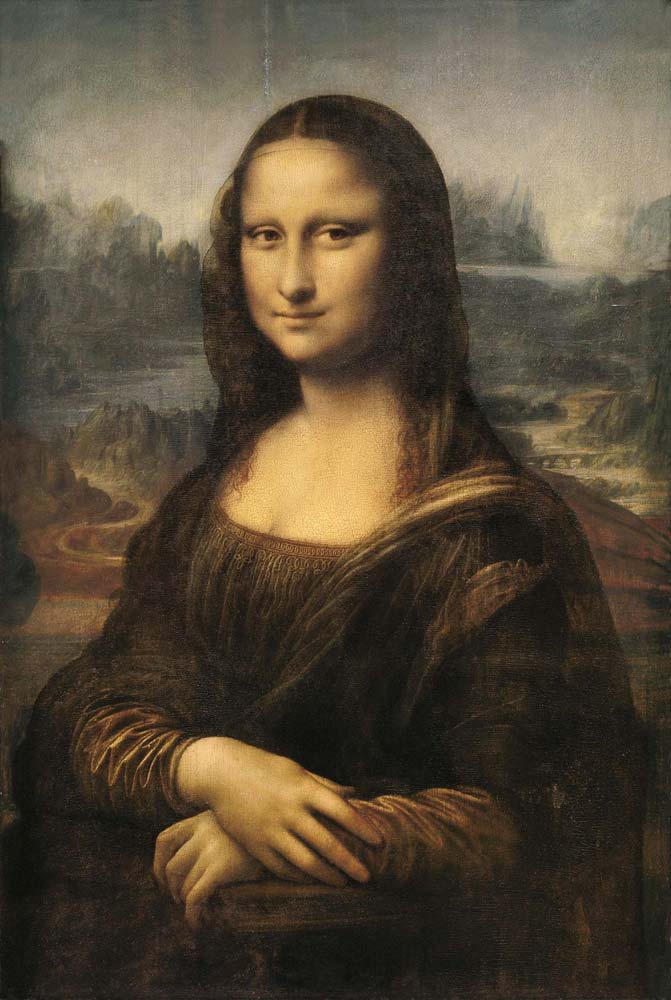


CSS | Animation

mona-lisa

Transitions do a great job of building out visual interactions from one state to another, and are perfect for these kinds of single state changes. However, when more control is required, transitions need to have multiple states. In return, this is where animations pick up where transitions leave off.

CSS animation is a method of animating certain HTML elements without having to use processor and memory-hungry JavaScript or Flash. There's no limit to the number or frequency of CSS properties that can be changed. CSS animations are initiated by specifying keyframes for the animation: these keyframes contain the styles that the element will have.

CSS animations are made up of two basic building blocks.

  1. Keyframes - define the stages and styles of the animation.
  2. Animation Properties - assign the @keyframes to a specific CSS element and define how it is animated.

#1: Keyframes

Keyframes are the foundation of CSS animations. They define what the animation looks like at each stage of the animation timeline. Each @keyframes is composed of:

  • Name of the animation: A name that describes the animation, for example, bounceIn.
  • Stages of the animation: Each stage of the animation is represented as a percentage. 0% represents the beginning state of the animation. 100% represents the ending state of the animation. Multiple intermediate states can be added in between.
  • CSS Properties: The CSS properties defined for each stage of the animation timeline.

Let’s take a look at a simple @keyframes I’ve named “bounceIn”. This @keyframes has three stages. At the first stage (0%), the element is at opacity 0 and scaled down to 10 percent of its default size, using CSS transform scale. At the second stage (60%) the element fades in to full opacity and grows to 120 percent of its default size. At the final stage (100%), it scales down slightly and returns to its default size.

The @keyframes are added to your main CSS file.

@keyframes bounceIn {
        0% {
          transformscale(0.1);
          opacity0;
        }
        60% {
          transformscale(1.2);
          opacity1;
        }
        100% {
          transformscale(1);
        }
 }

(If you’re unfamiliar with CSS Transforms, you’ll want to brush up on your knowledge. Combining CSS transforms in the animations is really where the magic happens.)

 #2: Animation Properties

Once the @keyframes are defined, the animation properties must be added in order for your animation to function.

Animation properties do two things:

  1. They assign the @keyframes to the elements that you want to animate.
  2. They define how it is animated.

The animation properties are added to the CSS selectors (or elements) that you want to animate. You must add the following two animation properties for the animation to take effect:

  • animation-name: The name of the animation, defined in the @keyframes.
  • animation-duration: The duration of the animation, in seconds (e.g., 5s) or milliseconds (e.g., 200ms).

Continuing with the above bounceIn example, we’ll add animation-name and animation-duration to the div that we want to animate.

div {
        animation-duration2s;      
        animation-name: bounceIn;
    }

Shorthand syntax:

div {
        animation: bounceIn 2s;      
    }

By adding both the @keyframes and the animation properties, we have a simple animation!


See the Pen CSS Animation-1 by PANKAJ (@pankkap) on CodePen.


Animation Property Shorthand

Each animation property can be defined individually, but for cleaner and faster code, it’s recommended that you use the animation shorthand. All the animation properties are added to the same animation: property in the following order:

animation: [animation-name] [animation-duration]
           [animation-timing-function] [animation-delay]
          [animation-iteration-count] [animation-direction
         [animation-fill-mode] [animation-play-state];

Just remember for the animation to function correctly, you need to follow the proper shorthand order AND specify at least the first two values.

Sub-properties

  • animation-name: declares the name of the @keyframes at-rule to manipulate.
  • animation-duration: the length of time it takes for an animation to complete one cycle.
  • animation-timing-function: establishes preset acceleration curves such as ease or linear.
  • animation-delay: the time between the element being loaded and the start of the animation sequence.
  • animation-direction: sets the direction of the animation after the cycle. Its default resets on each cycle.
  • animation-iteration-count: the number of times the animation should be performed.
  • animation-fill-mode: sets which values are applied before/after the animation.
    For example, you can set the last state of the animation to remain on screen, or you can set it to switch back to before when the animation began.
  • animation-play-state: pause/play the animation.


CSS3 Animation: keyframes timing function

To control the rate of the animation use CSS3 transition-timing-function property.

Syntax

The syntax of the property is given with:

animation-timing-function:   

linear | ease | ease-in | ease-out | ease-in-out | cubic-bezier(n,n,n,n)

linear

ease

ease-in

ease-out

ease-in-out

steps(5)

step-start

step-end

cubic-bezier(1,-0.1,0.8,1)


Property Values 

linear: The rate of transition remains constant from start to end

ease : The transition begins quickly and then gradually slows down

ease-in : Begins slowly and then ends then speeds up towards the end.

ease-out : The transition begins quickly and stays quick longer than ease, and then slows down and ends abruptly

ease-in-out: Accelerates in the beginning and then decelerates in the end.

cubic-bezier() : Transition is applied using a custom cubic bezier curve.

step-start : Tansition is applied at the start of the step.

step-end: Transiton is applied at the end of the step.

steps() : Change is introduced in steps specified within the brackets.


CSS3 animation-direction Property

The animation-direction CSS property specifies whether the animation should play in reverse on alternate cycles or not.

Syntax

The syntax of the property is given with:

animation-direction: 
normal | reverse | alternate | alternate-reverse

Property Values 

normal: The animation should play forward in each cycle. This is default.

reverse: The animation should play backward in each cycle.

alternate: The animation plays forward in the first cycle, then play backward, then continues to alternate.

alternate-reverse: The animation plays backward in the first cycle, then play forward, then continues to alternate.

CSS3 animation-fill-mode Property

The animation-fill-mode CSS property specifies how a CSS animation should apply styles to its target before and after it is executing.

Syntax

The syntax of the property is given with:

animation-fill-mode:

none | forwards | backwards | both | initial | inherit

Property Values

none: The animation will not apply any styles to the target before or after it is executing.

forwards: After the animation ends (as determined by its animation-iteration-count), the animation will apply the property values for the time the animation ended.

backwards: The animation will apply the property values defined in the keyframe that will start the first iteration of the animation, during the period defined by animation-delay property. These are either the values of the from keyframe (when animation-direction is normal or alternate) or those of the to keyframe (when animation-direction is reverse or alternate-reverse).

both: The animation will follow the rules for both forwards and backwards, thus extending the animation properties in both directions.


See the Pen CSS Car Animation by PANKAJ (@pankkap) on CodePen.